Project management tools · #4 of 10 · Best value for feature-rich teams
ClickUp Review 2026: Is It Worth It?
ClickUp is an all-in-one work platform that puts tasks, projects, Docs, Whiteboards, Chat, Forms, Goals, Sprints, time tracking and Dashboards into a single workspace, with an AI layer called ClickUp Brain on top. Its biggest strength is the sheer breadth of what you get for a low per-user price; the trade-offs are the effort needed to configure it, a dense interface, recurring complaints about lag, and AI features that are priced separately. This review covers pricing, project management, collaboration, automation, AI, integrations, ease of use, reporting and overall value.

ClickUp review: quick verdict
| Best for | Budget-conscious teams that want tasks, docs, chat, sprints and dashboards in one tool |
| Less suitable for | Teams that want a minimal tool with almost no setup, or organisations needing mature portfolio and financial controls |
| Our overall score | 8.9/10, ranked #4 in our top 10 project management tools |
| Price | Free Forever plan; Unlimited $7 and Business $12 per user/month billed annually ($10 and $19 monthly); Enterprise on quote; AI add-ons from $9 per user/month |
| Free trial | Free Forever plan with trial access to paid features; money-back guarantee advertised |
| Capterra rating | 4.6/5 from 4,634 reviews (checked 7 October 2026) |
| G2 rating | 4.6/5 from 14,714 reviews (checked 5 October 2026) |
ClickUp offers more features per pound or dollar than almost any mainstream project management tool, and it is genuinely capable for Agile teams, agencies and growing businesses that want to replace several apps with one. The costs are real, though: a good setup takes deliberate design, the interface can overwhelm new users, performance and bugs are the most common complaints in third-party reviews, and the most useful AI features add $9 to $28 per user per month on top of the plan.
Our scores
Scores use our standard review methodology, the same for every tool we review.
What Is ClickUp?
ClickUp is cloud-based project and work management software. It combines classic project management (tasks, dependencies, Gantt charts, milestones, sprints) with knowledge management (Docs and wikis), team communication (Chat) and an AI assistant, so that planning, documentation and discussion live next to the work.
Teams use it to manage:
- Tasks and projects, from personal to-dos to multi-team programmes
- Sprints and backlogs for software and product teams
- Requests, collected through Forms that create tasks automatically
- Docs and wikis, such as specs, SOPs and meeting notes linked to tasks
- Goals, time tracking and workload, to see progress and capacity
- Dashboards and reports across teams, clients and projects
ClickUp says it offers more than 15 views, so the same tasks can be shown as a list, board, table, calendar, Gantt chart, timeline, workload chart or mind map. It runs in the browser and as desktop and mobile apps. It is not a simple to-do list: its value, and its complexity, come from the number of building blocks it gives you and how much you can configure them.
Who Owns ClickUp?
ClickUp was founded in 2017 by Zeb Evans (CEO) and Alex Yurkowski (CTO) and is headquartered in San Diego, California. It is privately held and venture-backed; its largest round was a $400 million Series C in October 2021 at an estimated $4 billion valuation. It acquired the search tool Slapdash in 2022 and the agentic AI coding company Codegen in December 2025, whose technology ClickUp says underpins its Super Agents. Like many software companies, it has also made layoffs, most recently a reported 22% reduction in May 2026.
For buyers, the practical point is that ClickUp is an established, fast-moving product: that pace brings frequent new features, but also interface changes some long-term users find disruptive.
How Does ClickUp Work?
Everything in ClickUp sits inside a hierarchy, and understanding it is the key to a good setup:
- Workspace is the whole organisation. Paid plans apply to the entire Workspace.
- Spaces are the top-level areas, usually one per department, team or major client.
- Folders (optional) group related Lists, such as "Q4 campaigns" or "Client A". Subfolders are in beta.
- Lists hold tasks and usually represent a project, a sprint or a process.
- Tasks and subtasks are the individual pieces of work, each with assignees, dates, a priority and a status. Subtasks can be nested up to seven levels, and checklists break tasks into smaller steps.
- Custom fields add the data your team needs, such as budget, channel, client or sprint points.
Statuses and fields can be set at Space, Folder or List level, and ClickApps switch individual features on or off (for example time estimates, sprint points or nested subtasks). Views can be added at any level of the hierarchy, and Dashboards summarise work across it.
A typical workflow looks like this:
Request arrives through a Form → task created in a List → work assigned → task moves through custom statuses → discussion in comments or Chat → progress shown on a Dashboard → task closed
For example, a sales team submits a Form asking for a new case study. ClickUp creates a task in the Marketing Space's Content List, assigns it to a writer and sets the due date. The writer drafts the case study in a linked Doc, a reviewer leaves comments that become assigned actions, and the marketing lead sees the task move to Published on a Dashboard. Our work breakdown structure guide is a good starting point for deciding how to split work into Spaces, Folders and Lists.
ClickUp Key Features
Task Management
Tasks are where ClickUp is deepest. Each task can have subtasks, multiple assignees, start and due dates, priorities, custom statuses, custom task types (such as bug, lead or request), tags, custom fields, time estimates, checklists, attachments and comments. Task relationships handle task dependencies, recurring tasks cover routine work, and task templates make repeatable work consistent.
This depth pays off once many people share the same work, but it also means there are many ways to model the same thing, so teams need agreed conventions.
Views
List, Board, Table and Calendar views are the everyday workhorses; Gantt, Timeline, Workload, Mind Map, Map and Activity views serve more specialised needs. Every view is a filtered window onto the same tasks, so a project manager can plan in Gantt while the team works from a board. Some views are limited on lower plans: Gantt is a trial on Free Forever, and Timeline, Activity and Mind Map are fully unlocked on Business.
Gantt Charts
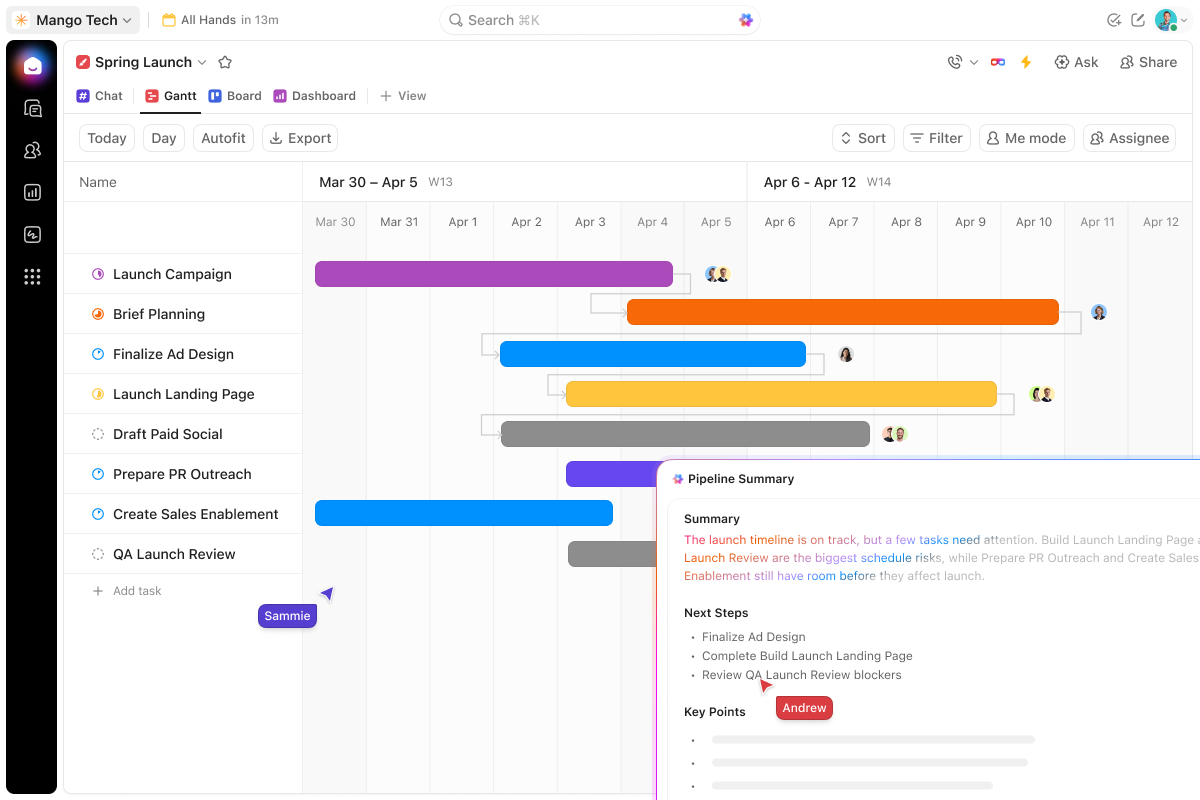
ClickUp's Gantt charts support all four dependency types, automatic rescheduling of downstream tasks when a date moves, the critical path, slack time, milestones and baselines for planned-versus-actual comparison. The pricing page lists Gantt as a trial on Free Forever and unlimited from the Unlimited plan, and ClickUp says baselines are on paid plans.
For date-driven projects such as launches and events, this is a capable scheduler for the price; for simple task tracking it is more than most teams need.
Kanban Boards
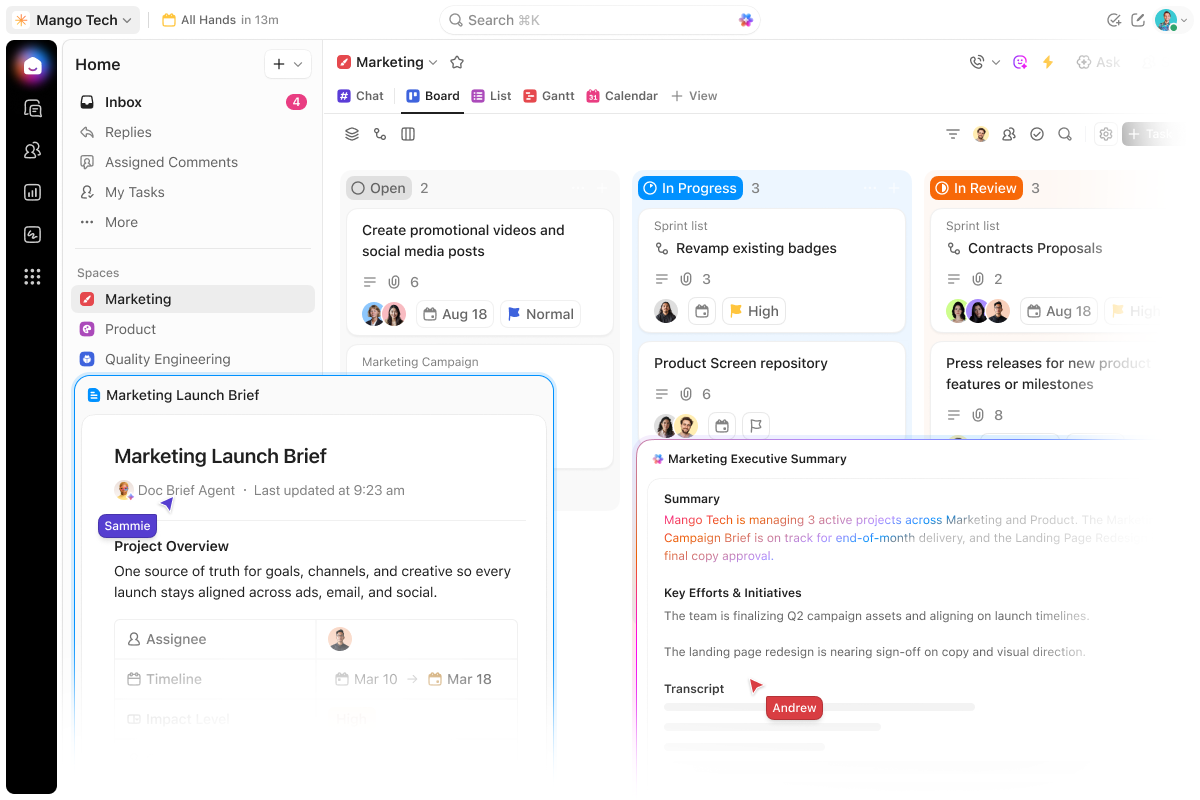
Board view shows tasks as cards in columns by status, with drag-and-drop (including several cards at once), filters by assignee, priority, tag or field, and nested subtasks on cards. ClickUp supports WIP limits per column and flags a column when it is full, which is unusual at this price. Board view is available on Free Forever. Our Kanban boards guide and free Kanban board template cover the practice behind it.
ClickUp Docs and Wikis
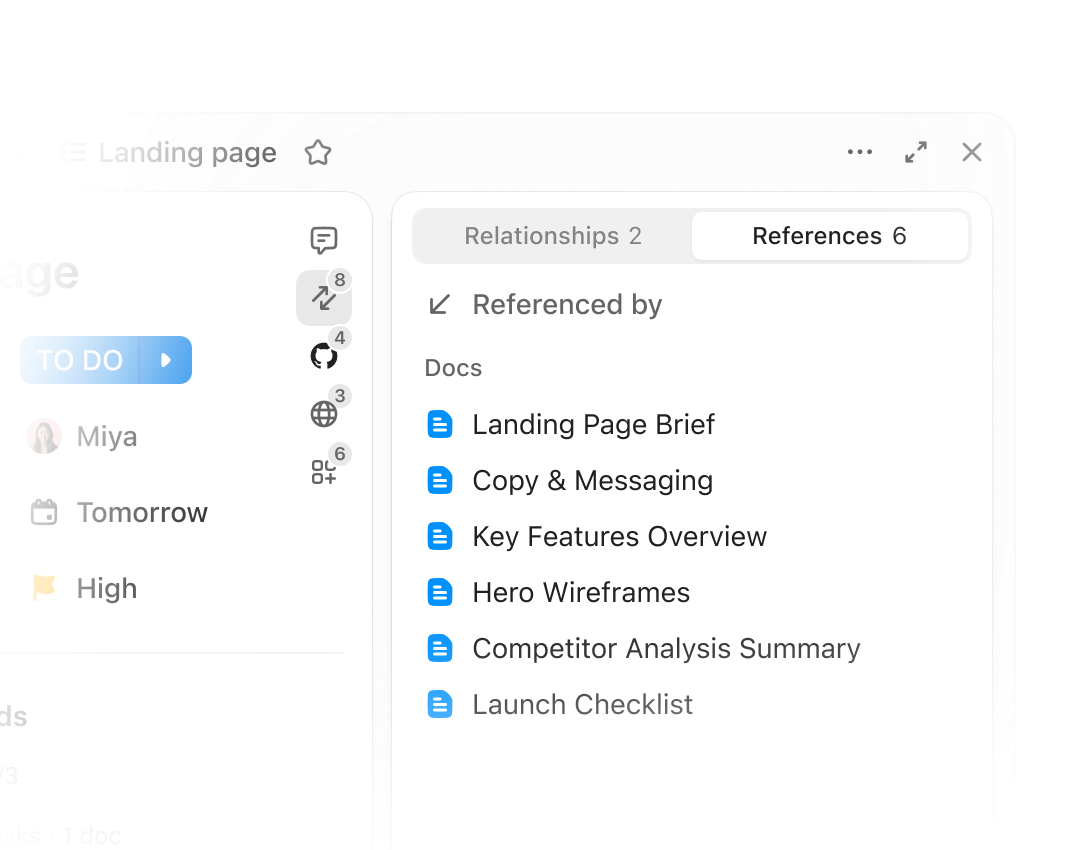
Docs are one of ClickUp's clearest advantages over task-first tools such as Asana and monday.com. They support nested pages, real-time co-editing with live cursors, inline comments that can be turned into tasks, embedded media, version history and granular permissions. Docs can be linked to tasks and sprints, and the Docs Hub lets you search and filter every Doc in the Workspace. Any Doc can be marked as a wiki; Free Forever includes one wiki.
For teams splitting work between a project tool and a separate wiki, this is a real consolidation opportunity, although teams with large, structured knowledge bases may still prefer a dedicated tool.
Whiteboards
Whiteboards provide a canvas for brainstorming and process mapping, and shapes or notes can be converted into tasks. They are capped at three on Free Forever and ten on Unlimited, with private whiteboards added on Business. They suit kick-offs and retrospectives rather than replacing a dedicated whiteboard app.
Forms
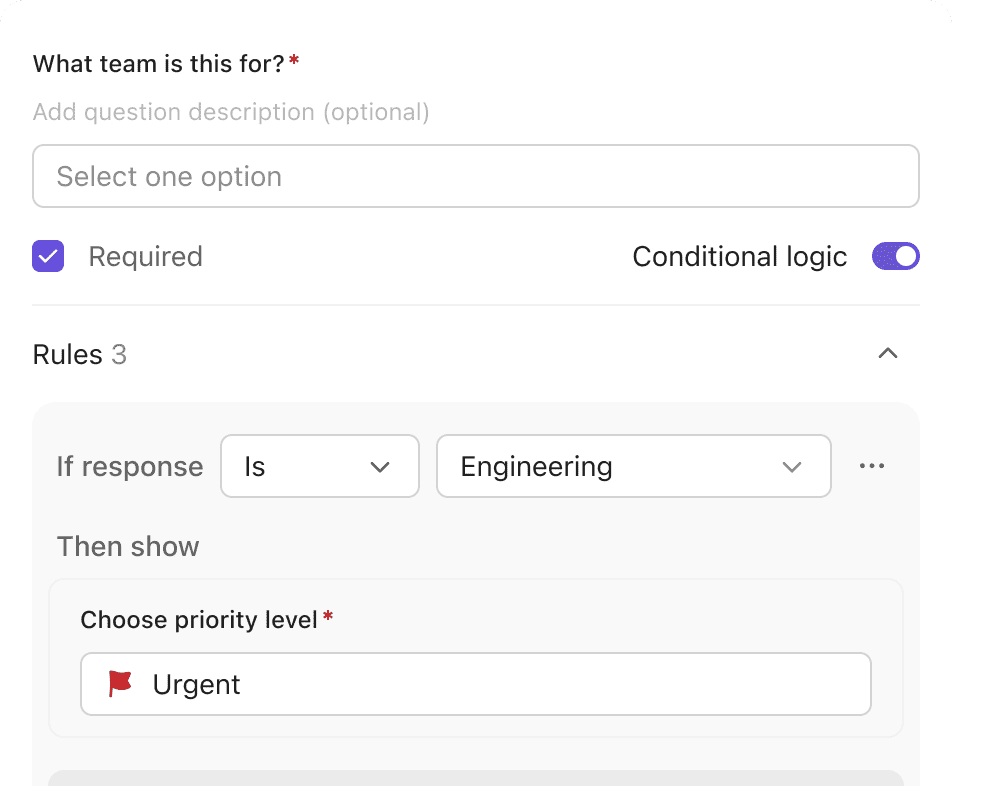
Forms turn requests into tasks. Each answer maps to a custom field, conditional logic shows follow-up questions only when relevant, and each submission lands in a chosen List with an assignee and priority already set. People outside ClickUp, such as clients and contractors, can submit without an account. Free Forever includes one Form; Unlimited removes the cap.
For example, a marketing team can use one Form to collect design requests with the deadline, channel, campaign, brief and attachments, so nothing arrives half-specified by email. Our free work request template follows the same idea if you are not ready for software.
Sprints and Agile Tools

ClickUp is one of the stronger general-purpose tools for Agile teams. Sprints are created as dated Lists, unfinished work spills over to the next sprint automatically, and sprint points (on Business) support story point estimation. Sprint reporting includes burndown and burnup charts, velocity and cumulative flow, and GitHub, GitLab and Bitbucket integrations link commits and pull requests to tasks.
It is less specialised than Jira for large engineering organisations, but a credible option for product teams that want Docs and stakeholder views in the same tool.
Time Tracking, Goals and Workload
Native time tracking, time estimates and timesheets with approvals are built in (a trial on Free Forever, included from Unlimited), which avoids a separate time-tracking subscription for many teams. Goals and Portfolios track progress across Lists and projects from the Unlimited plan. The Workload view shows each person's assigned effort over time, and portfolio-level workload management is on Business. These are practical for capacity planning in small and mid-sized teams, but less mature than the resource and financial planning in tools aimed at PMOs, such as Wrike.
ClickUp Automations

Automations follow a trigger-condition-action pattern: when a status changes, a date arrives or a Form is submitted, ClickUp can assign people, change statuses, post comments, move tasks, send emails or call a webhook. ClickUp advertises more than 100 templates and an AI builder that drafts rules from a plain-language description, which you can edit before publishing.
Automations are practical for removing routine coordination, but they are metered. The pricing page lists 100 automation executions on Free Forever, 1,000 on Unlimited, 5,000 per month on Business and 250,000 per month on Enterprise, so busy teams on lower plans can run out.
ClickUp AI Features (ClickUp Brain)
AI is now central to how ClickUp sells itself (the Brain page currently uses the name Brain²), but the key buying point is that the most useful AI is not included in the base plans. Free Forever gives limited trial access, and the full capabilities are the paid Brain AI and Everything AI add-ons.
Brain Assistant and AI Writing
The Brain assistant answers questions about your tasks, Docs and Chat in plain language, drafts and rewrites text, summarises long threads and produces "catch me up" summaries. ClickUp says Brain only surfaces information the user already has permission to see. For project work, the most practical uses are status summaries, first drafts of briefs and quickly catching up on a busy task.
Enterprise Search and Model Choice
Enterprise search looks across the Workspace and connected apps such as Google Drive, GitHub and Salesforce from one place. The Brain AI add-on also includes AI chat with a choice of third-party models, which the pricing page lists as Claude, ChatGPT and Gemini. ClickUp states that it forbids third-party AI providers from training on customer data.
Super Agents
Super Agents are configurable AI teammates that can be @mentioned, messaged and assigned tasks. ClickUp says they can create and update tasks, draft documents, send emails and messages, schedule events and run multi-step workflows, and can be set up by describing the job in plain language. They work within the same permission model as human users and ClickUp says every action is recorded in an audit trail.
Treat them as workflow automation with a natural-language interface, not autonomous employees: they follow the instructions and access you give them, consume AI credits, and still need a human owner. ClickUp's claim that its AI "beats every benchmark" is vendor marketing; judge agents on a real workflow.
AI Notetaker, AI Fields and Ambient Answers
The higher Everything AI tier adds the AI Notetaker (meeting transcripts, summaries and action items), AI Fields that fill in summaries or categories on tasks automatically, AI-powered automations and dashboard cards, AI assignment and prioritisation, image generation, and Ambient Answers, which ClickUp says surface relevant answers and context automatically, before you ask.
How ClickUp AI Is Priced
| AI option | Listed price | What it adds |
|---|---|---|
| Free Forever | $0 | Limited trial access to advanced AI features |
| Brain AI | $9/user/month | Unlimited Brain assistant and AI writing, AI chat with Claude, ChatGPT and Gemini, enterprise search, 1,500 AI Super Credits per user/month |
| Everything AI | $28/user/month | Everything in Brain AI plus AI Notetaker, AI Fields, AI automations and dashboards, AI assign and prioritise, more Super Agent usage, 5,000 AI Super Credits per user/month |
| AI Super Credits | $10 per 10,000 credits | Top-ups for Super Agents, AI Fields, AI automations and image generation |
The pricing page notes that yearly AI billing is discounted by up to 20%, so confirm which billing basis a quote uses. The add-ons change the value calculation considerably: a Business seat at $12 per month becomes $40 per month with Everything AI, more than many rivals' AI-inclusive plans. Many teams will get most of the value from Brain AI for a subset of users.
ClickUp Collaboration Features
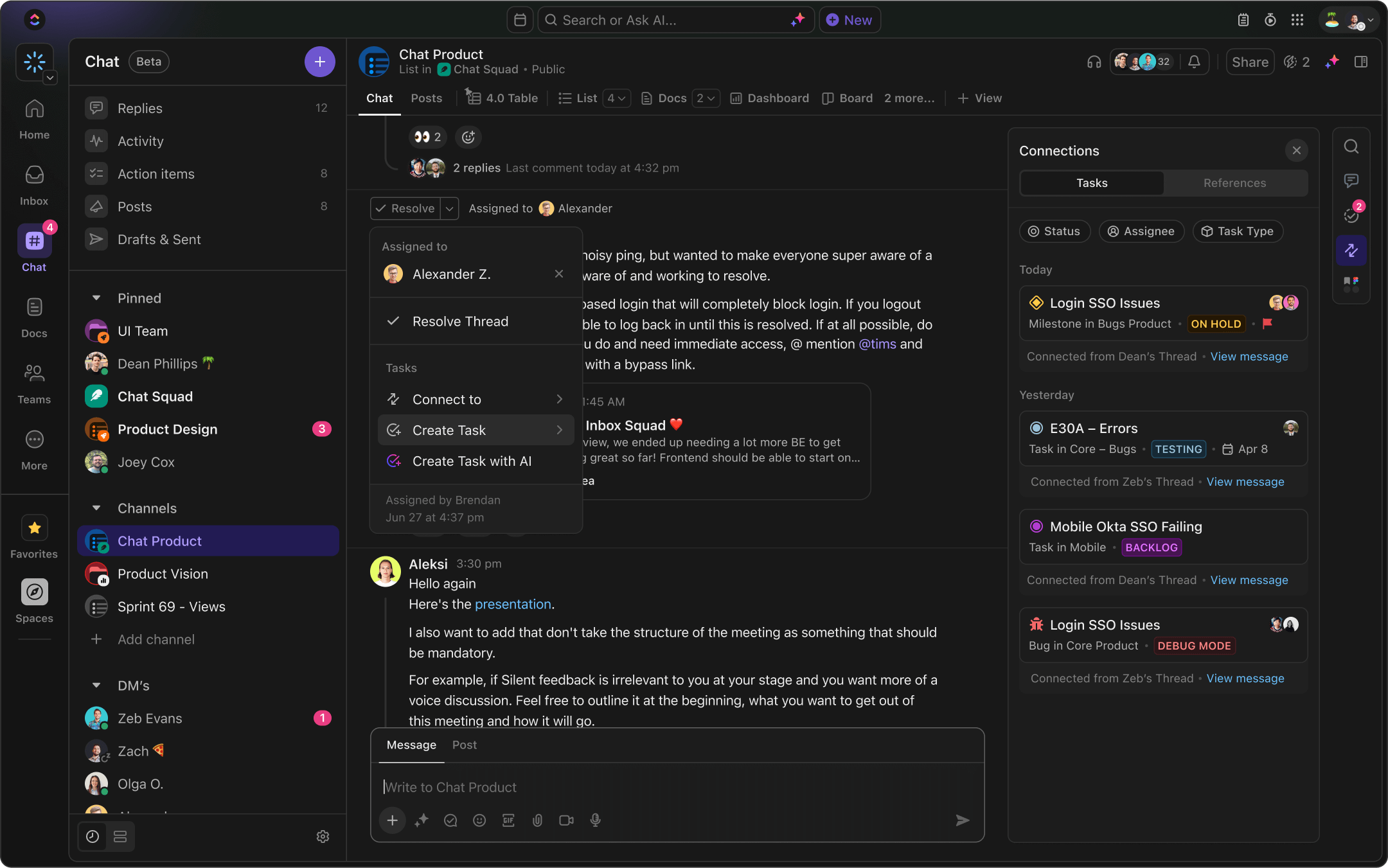
Collaboration happens both on tasks and in ClickUp Chat. On tasks, you get comments, @mentions, attachments and assigned comments, which turn a comment into an action item for a named person. ClickUp Chat adds channels, direct messages, posts for announcements, threads, FollowUps that turn messages into to-dos, and one-click voice and video calls with automatic summaries. ClickUp offers a Slack import for channels and history, and Chat is included from the Unlimited plan (Free Forever keeps 30 days of chat history).
Clips (screen and voice recordings), proofing on files, guests and a central Inbox round things out. Having discussion, documents and tasks in one place is a genuine advantage, but only if the team actually moves conversations out of Slack or Teams; otherwise Chat becomes one more place to check. Notification volume is a recurring complaint, so agree settings early.
ClickUp Reporting and Dashboards
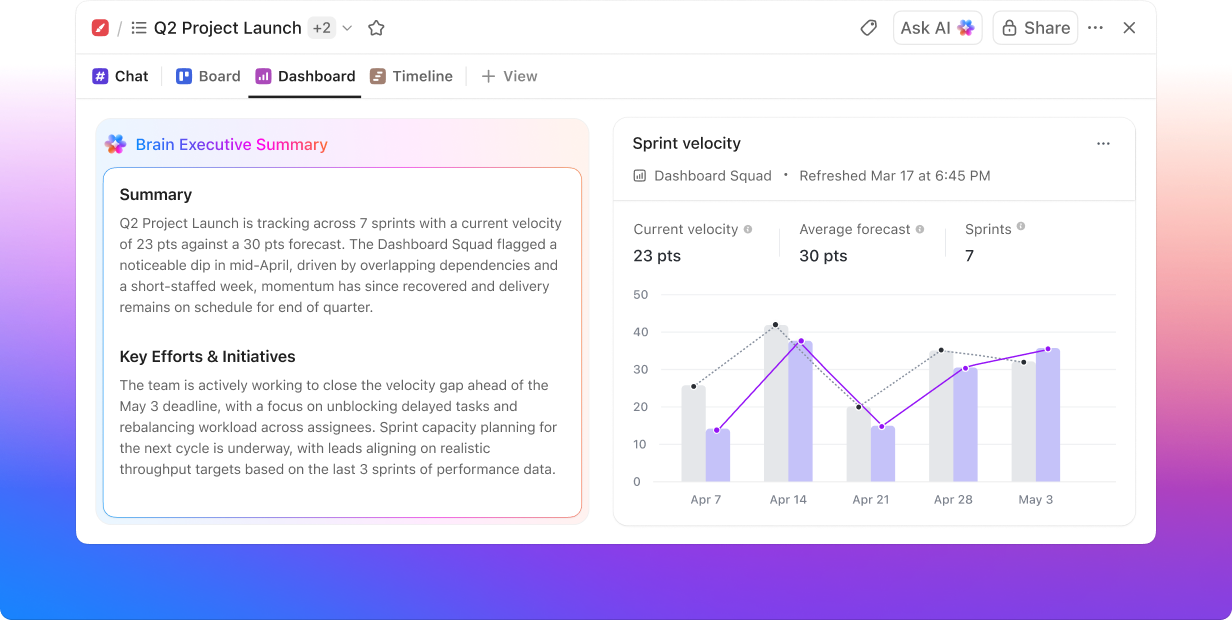
Dashboards combine cards for charts, tables, workload, time tracking, sprint metrics and calculations, filtered by owner, status, date or custom field. They are actionable, so you can change statuses or reassign tasks from the dashboard, and they can be shared with clients or executives without giving them access to the whole Workspace. Brain can answer questions about dashboard data in plain language.
Plan matters here: Dashboards are a trial on Free Forever and Unlimited, and unlimited Dashboards with advanced cards come with Business, which makes Business the realistic starting point for managers who rely on reporting. For deeper analysis, ClickUp connects to Tableau. Dashboards handle the weekly project status report well, but they are not a full portfolio analytics suite.
ClickUp Integrations
ClickUp claims more than 1,000 integrations, a figure that includes connections through automation platforms such as Zapier and Make. Native integrations include Slack, Microsoft Teams, Zoom, GitHub, GitLab, Bitbucket, Google Drive, OneDrive, Dropbox, Outlook, Google Calendar, HubSpot, Zendesk, Figma, Tableau and time-tracking tools such as Toggl and Harvest. Developers can use the public REST API, webhooks and the ClickUp MCP server for AI tools.
Importers bring in work from Asana, Trello, Jira, monday.com, Wrike, Basecamp, Confluence and Todoist, which makes migration easier. Integrations are unlimited from the Unlimited plan, while webhooks and automation integrations are listed under Business.
ClickUp Ease of Use
Initial Setup
Setting ClickUp up well means designing the hierarchy, statuses, custom fields, ClickApps, views, permissions and automations. Templates help, but a poorly planned hierarchy is hard to reorganise later. A small team can be productive in a day; a company-wide rollout needs an owner and a plan.
Learning Curve
Basic task management is quick to pick up, and Capterra reviewers rate ease of use 4.3/5, the lowest of ClickUp's four sub-scores but still respectable. The difficulty is breadth: new users face many menus, views and options at once, and reviewers frequently describe the tool as overwhelming at first. ClickUp University, templates and the Help Center help, and it is worth hiding ClickApps and views your team does not need.
Interface and Performance
The interface is flexible and customisable, with themes, dark mode and personal views, but it is dense, and frequent product updates can move familiar controls. Performance is the most persistent criticism in third-party reviews. In Capterra's topic summaries, about 78% of the 290 reviews mentioning lag and slowdowns are negative, and about 56% of the 227 mentioning bugs and glitches are negative. Reports cluster around large boards and busy Workspaces. It is not universal, but it is common enough that larger teams should test performance with realistic data during evaluation.
ClickUp Mobile App
ClickUp's iOS and Android apps let you check and update tasks, drag cards on boards, use Chat, receive notifications and make quick updates away from your desk. Brain is also available on mobile.
Mobile is a recurring concern in reviews. Capterra's topic summary on mobile functionality is mixed, with about 40% of the 273 reviews mentioning it negative, citing a less intuitive layout, bugs and occasional crashes. Treat the app as a companion for staying up to date, and do planning, configuration and reporting on desktop.
ClickUp Pricing
ClickUp's published plans are below. Prices are per user per month; the lower figure applies when billed annually and the higher when billed monthly. ClickUp requires upgrades to apply to the entire Workspace rather than to individual users.
| Plan | Billed annually | Billed monthly | Best for |
|---|---|---|---|
| Free Forever | $0 | $0 | Personal use and trying ClickUp |
| Unlimited | $7/user/month | $10/user/month | Small teams |
| Business | $12/user/month | $19/user/month | Mid-sized teams that need reporting and advanced automation |
| Enterprise | Contact sales | Contact sales | Large organisations needing governance and security controls |
AI is extra: Brain AI is $9 and Everything AI is $28 per user/month, and extra AI Super Credits cost $10 per 10,000 (see the AI section above). ClickUp Assist, which provides two hours a month of one-to-one expert time, is also sold separately. Pricing checked on ClickUp's pricing page on 7 October 2026; always confirm before buying.
ClickUp Free Forever Plan
Free Forever costs $0 and includes unlimited members and tasks, 60MB of storage, Docs, Board, Calendar and Sprints, one Form, one wiki, three whiteboards, up to five Spaces and 100 automation executions. Gantt charts, Dashboards, time tracking and timesheets are available only as trials, activity history is kept for one day and chat history for 30 days. It is one of the more generous free plans for individuals and very small teams, but the 60MB storage limit and trial-only reporting mean most working teams will outgrow it quickly.
ClickUp Unlimited Plan
At $7 per user/month billed annually ($10 monthly), Unlimited removes the storage, Space and Form caps and adds unlimited Gantt charts, integrations and custom fields, native time tracking, Goals and Portfolios, resource management, guest permissions, ClickUp Chat and email in ClickUp. Limits include 1,000 automation executions and ten whiteboards, and Dashboards remain a trial. It suits small teams that want real project planning at a low price.
ClickUp Business Plan
At $12 per user/month billed annually ($19 monthly), Business adds unlimited Dashboards with advanced cards, unlimited Timeline and Activity views, mind maps, 5,000 automations per month, webhooks and automation integrations, sprint points and sprint reporting, portfolio workload management, private whiteboards, unlimited proofing, custom exporting and Google SSO. This is the plan most teams that rely on reporting or run sprints should evaluate first.
ClickUp Enterprise Plan
Enterprise is quote-based and adds enterprise permissions and governance, unlimited custom roles, SAML SSO and SCIM provisioning, audit logs, session management, an enterprise API, 250,000 automations per month, custom branding, data residency, HIPAA availability, live onboarding training and a Customer Success Manager. It is designed for large organisations with security, compliance and administration requirements.
ClickUp Free Trial and Money-Back Guarantee
ClickUp does not advertise a fixed-length trial of the whole product. Instead, Free Forever gives trial access to paid features such as Gantt charts, Dashboards, time tracking and AI, and the pricing page advertises a "100% Money-back Guarantee" without stating its conditions on the page, so check the refund terms before paying. Use the free plan to rebuild one real workflow with the people who will use it, and test it with a realistic volume of tasks so you can judge performance, not just features.
ClickUp Pros and Cons
Pros
- Very strong value for money on paid plans
- Huge feature set in one Workspace
- Flexible hierarchy, statuses, fields and 15+ views
- Docs, wikis, Whiteboards and Chat built in
- Strong sprint and Agile support
- Generous Free Forever plan
- Large automation library with an AI builder
- Wide integrations, API and importers
- Native time tracking and Goals from Unlimited
Cons
- Setup takes deliberate design to do well
- Interface can feel overwhelming to new users
- Lag and bugs are the most common user complaints
- Best AI features cost $9 to $28 per user/month extra
- Dashboards and sprint points need Business
- Free plan storage (60MB) and automation limits are tight
- Mobile app less complete than desktop
- Frequent updates can change familiar workflows
- Less mature portfolio and financial controls than PMO-focused tools
This balance matches what users report: people value ClickUp's breadth, flexibility and price, while complexity and performance are its most consistent drawbacks.
What Do ClickUp Customers Say?
- Ease of use: 4.3/5
- Features: 4.6/5
- Customer service: 4.5/5
- Value for money: 4.6/5
What G2 reviewers like most
- Easy and simple to use once set up
- Flexible task management
- Abundance of features
Most common G2 complaints
- Some missing features
- Learning curve due to many features
- Complex setup
Ratings and review themes as published on G2 and Capterra on 5 October 2026; summarised in our own words. Visit the links above for full, verified user reviews.
On Capterra, ClickUp is rated 4.6/5 from 4,634 reviews, with sub-scores of 4.3 for ease of use, 4.6 for features, 4.6 for value for money and 4.5 for customer service (checked 7 October 2026). On G2, it is rated 4.6/5 from 14,714 reviews (checked 5 October 2026). The themes below summarise these third-party reviews in our own words, not ClickUp's testimonials.
Positive themes. Reviewers most often praise having everything in one place, collaboration and visibility, flexible and customisable workflows, productivity gains, and the value of the free and low-cost plans. In Capterra's topic summaries, collaboration (about 97% positive across 466 mentions), productivity (about 95% positive) and adaptable project management (about 98% positive) stand out.
Negative themes. The most common complaints are lag and slowdowns, especially in large boards and busy Workspaces, recurring bugs and glitches, a learning curve caused by the number of features, a less capable mobile app, notification settings that are hard to tune, and costs rising as users are added. Some reviewers also find frequent interface changes disruptive.
When reading reviews yourself, check whether a review was invited or incentivised by the vendor. Both Capterra and G2 label these, and filtering for non-incentivised reviews gives a more cautious picture. Read the critical reviews from companies similar in size to yours, not just the five-star ones.
ClickUp Customer Support
ClickUp's pricing page lists 24/7 support, including on Free Forever. Self-service resources include the Help Center, ClickUp University courses, templates and a user community. Enterprise adds live onboarding training and a dedicated Customer Success Manager, and ClickUp Assist is a paid add-on for one-to-one expert help, including setting up AI agents.
Third-party views are mostly positive, with a 4.5/5 customer service sub-score on Capterra, but individual experiences vary. For larger rollouts, ask during the sales process exactly what onboarding is included and who will help design your hierarchy.
ClickUp Security
ClickUp's security page states that it holds SOC 1 Type 2, SOC 2 Type 2 and SOC 3 reports, ISO 27001, 27017, 27018 and 27701 certifications and ISO 42001 for AI management, maintains PCI compliance, and is GDPR and HIPAA compliant (HIPAA agreements are listed as available on Enterprise). Data is hosted on Amazon Web Services, encrypted at rest with AES-256 and in transit with TLS 1.2, and Enterprise customers can choose data residency in the US, Europe or Asia Pacific.
Access controls scale by plan: two-factor authentication on every plan, Google SSO and SMS 2FA on Business, and SAML SSO, SCIM provisioning, audit logs, session management and custom roles on Enterprise. Guest permissions let you share specific work with clients without exposing the Workspace. Confirm current certifications and their scope in ClickUp's trust documentation as part of procurement, and review how AI features handle your data.
ClickUp for Different Types of Teams
ClickUp for Software and Product Teams
Sprints, sprint points, burndown and velocity reporting, Git integrations, bug task types and Docs for specs make ClickUp a strong fit for small and mid-sized product teams that want planning and documentation together. Large engineering organisations with complex release and issue workflows may still prefer Jira.
ClickUp for Marketing and Creative Teams
Forms for requests, content calendars, proofing for creative feedback, Docs for briefs and Whiteboards for campaign planning cover most marketing needs. The flexibility suits teams with varied work types, provided someone keeps the setup tidy.
ClickUp for Agencies and Client Services
Agencies can run each client in its own Space or Folder, track time against tasks, share Dashboards or Lists with clients as guests, and collect client requests through Forms. The low per-user price helps agencies with many staff.
ClickUp for Project Managers and PMOs
Gantt charts with critical path and baselines, Portfolios, Goals, workload views and Dashboards give project managers most of what they need for managing multiple projects. For a formal PMO needing advanced resource, budget and financial control across a large portfolio, ClickUp is less mature than tools built for that purpose.
ClickUp for Small Businesses and Start-ups
This is one of ClickUp's best fits: a usable free plan, low paid prices, and enough breadth to replace a task manager, a wiki and a time tracker. The risk is over-building; start with a simple hierarchy and add features only when you need them.
Who Should Use ClickUp?
Great for
- Start-ups and SMBs wanting maximum features per dollar
- Software and product teams wanting sprints and docs together
- Teams consolidating several tools
Look elsewhere if
- Teams that want a simple, minimal tool
- Organisations needing enterprise-grade financial and portfolio controls
ClickUp Feature Checklist
| Feature | ClickUp |
|---|---|
| Free plan | ✓ Yes |
| Gantt / timeline | ✓ Yes |
| Kanban boards | ✓ Yes |
| Time tracking | ✓ Yes |
| Resource & workload management | ✓ Yes |
| Portfolio management | ✓ Yes |
| Docs & wiki | ✓ Yes |
| Automations | ✓ Yes |
| Agile / sprint tools | ✓ Yes |
| Proofing & approvals | ✓ Yes |
| Built-in AI | + Add-on |
| Guest / client access | ✓ Yes |
| Flat (non per-user) pricing | ✕ No |
ClickUp Alternatives and Comparisons
ClickUp fits teams of almost any size, from freelancers and small teams to large organisations that want tasks, docs, goals and chat in one place. Beginners can start with a simple list or board and a ready-made template, then switch on more views, automation and ClickUp Brain as their needs grow. If you would like to see how it stacks up, we compare ClickUp with Asana, monday.com, Wrike, Jira and others on pricing, features and use cases on dedicated pages:
- Wrike: choose it for more mature enterprise resource and portfolio management. Compare ClickUp vs Wrike.
- monday.com: choose it for a simpler, more polished interface. Compare ClickUp vs monday.com.
- Asana: choose it for a cleaner, more focused task experience. Compare ClickUp vs Asana.
- Notion: choose it for a docs-first workspace. Compare ClickUp vs Notion.
- Jira: choose it for dedicated software development tooling. Compare ClickUp vs Jira.
ClickUp comparisons
Is ClickUp Worth It?
ClickUp is likely worth it if you:
- Want to replace separate task, docs, whiteboard and time-tracking tools with one platform.
- Need many views over the same work, from boards to Gantt charts.
- Run sprints or Agile workflows alongside non-technical teams.
- Are price-sensitive but need more than a basic task list.
- Have someone willing to design and maintain the setup.
It may not be worth it if:
- You want a tool that works well with almost no setup.
- Your Workspace will be very large and performance is critical.
- You need mature portfolio, resource and financial management.
- You would need Everything AI for every user, which removes much of the price advantage.
- Your team is unlikely to adopt a feature-dense platform.
Our verdict: ClickUp's breadth is both its biggest advantage and its biggest drawback. For teams that will use its Docs, sprints, automations and dashboards, it delivers more for the money than most competitors, which is why it ranks fourth in our project management software review. For teams with simple needs, or those that cannot tolerate occasional lag, the same breadth adds complexity they do not need. If you are still deciding, our guide on how to choose project management software sets out the questions to ask, and the Free Forever plan is the place to test them.
Frequently asked questions
Is ClickUp good project management software?
Yes, for the right team. ClickUp offers an unusually broad feature set, including tasks, Gantt charts, sprints, Docs, Chat and Dashboards, at low prices, and it rates 4.6/5 on Capterra. The trade-offs are a learning curve, a dense interface and recurring complaints about lag, so it suits teams willing to invest in setup.
Is ClickUp free?
Yes. ClickUp's Free Forever plan costs $0 and includes unlimited members and tasks, Docs, Board view and Sprints, but only 60MB of storage, one Form, three whiteboards and 100 automation executions. Gantt charts, Dashboards and time tracking are trial-only on the free plan.
How much does ClickUp cost?
ClickUp costs $0 on Free Forever, $7 per user/month on Unlimited and $12 per user/month on Business when billed annually ($10 and $19 billed monthly), with Enterprise priced on request. AI is extra: Brain AI is $9 and Everything AI $28 per user/month (checked 7 October 2026).
Does ClickUp have a free trial?
ClickUp does not advertise a fixed-length trial of the whole product. Instead, the Free Forever plan includes trial access to paid features such as Gantt charts, Dashboards, time tracking and AI, and the pricing page advertises a money-back guarantee. Check the refund terms before paying.
Is ClickUp easy to use?
Partly. Creating and updating tasks is quick to learn, but ClickUp's breadth of views, settings and features makes it overwhelming for many new users, and a good setup needs planning. Capterra users rate ease of use 4.3/5, lower than its scores for features and value.
What is ClickUp best used for?
ClickUp is best for teams that want tasks, projects, sprints, Docs, request Forms, time tracking and Dashboards in one place, particularly start-ups, small and mid-sized businesses, product and software teams, marketing teams and agencies.
Is ClickUp better than Asana?
Neither is universally better. ClickUp offers more features for the money, including Docs, Chat and native time tracking; Asana is cleaner, more focused and usually easier to adopt. See our ClickUp vs Asana comparison.
Is ClickUp better than monday.com?
It depends on the use case. ClickUp is cheaper and has stronger Docs and Agile tools; monday.com is generally easier to learn and more visually polished. See our ClickUp vs monday.com comparison.
Does ClickUp have Gantt charts?
Yes. ClickUp's Gantt view supports all four dependency types, automatic rescheduling, the critical path, slack time, milestones and baselines. It is a trial on Free Forever and unlimited from the Unlimited plan.
What is ClickUp Brain and is ClickUp AI free?
ClickUp Brain is ClickUp's AI assistant for answering questions about your work, writing, summarising, searching connected apps and running Super Agents. Free Forever includes only limited trial use; full AI requires the Brain AI ($9) or Everything AI ($28) add-on per user per month.
What are the main disadvantages of ClickUp?
The main disadvantages are the setup effort, an interface that can feel overwhelming, reported lag and bugs in large Workspaces, AI that costs extra, a less capable mobile app, and frequent interface changes.
Why is ClickUp slow?
Lag is the most common complaint in ClickUp reviews, usually in large boards, busy Workspaces or views loading many tasks. Keeping Lists focused, archiving finished work, limiting heavy views and testing with realistic data during evaluation all help.
Does ClickUp integrate with Slack and Microsoft Teams?
Yes. ClickUp has native integrations with both Slack and Microsoft Teams, alongside GitHub, GitLab, Google Drive, HubSpot, Zoom, Figma and Tableau. It claims more than 1,000 integrations in total, including those through Zapier and Make.
Is ClickUp suitable for small businesses?
Yes, it is one of ClickUp's best fits. The free plan and low paid prices suit small budgets, and one tool can replace a task manager, wiki and time tracker. Start with a simple setup to avoid overwhelming the team.
Is ClickUp secure?
ClickUp says it holds SOC 1 Type 2, SOC 2 Type 2 and SOC 3 reports and several ISO certifications, encrypts data with AES-256 at rest and TLS 1.2 in transit, and hosts on AWS. SAML SSO, SCIM and audit logs require Enterprise.
Product screenshots are © ClickUp and shown for the purpose of review, with links to their source pages.