Project management tools · #9 of 10 · Best for simple Kanban boards
Trello Review 2026: Is It Worth It?
Trello is a visual work management tool built around boards, lists and cards, and it is owned by Atlassian, the company behind Jira and Confluence. Its biggest strength is how quickly anyone can understand it and start using it; its biggest limitation is how little it offers, out of the box, for complex projects with dependencies, shared resources and many moving parts. This review covers boards and views, automation, Power-Ups, AI, Inbox and Planner, integrations, ease of use, pricing and overall value.
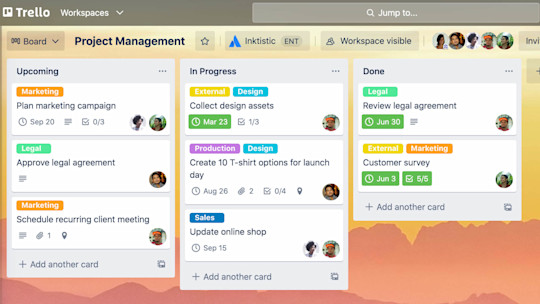
Trello review: quick verdict
| Best for | Individuals and small teams that want simple, visual Kanban boards with almost no setup |
| Less suitable for | Teams managing complex schedules, dependencies, resources, budgets or many projects at once |
| Our overall score | 7.8/10, ranked #9 in our top 10 project management tools |
| Price | Free plan (up to 10 collaborators per Workspace); Standard $5, Premium $10 and Enterprise $17.50 per user/month (billed annually) |
| Free trial | 14-day Premium trial, no credit card required |
| Capterra rating | 4.5/5 from 23,628 reviews (checked 7 October 2026) |
| G2 rating | 4.4/5 from 14,063 reviews (checked 5 October 2026) |
Trello is one of the easiest project management tools to adopt, and for simple, card-based workflows it is fast, flexible and inexpensive. The trade-offs are clear: the Free plan is now capped at 10 collaborators per Workspace, timeline, table, calendar and dashboard views need Premium, there is no native dependency scheduling, resource management or portfolio reporting, and stretching Trello with Power-Ups adds cost and complexity. It is a strong choice for teams whose work fits on a board, and a weak one for teams whose work does not.
Our scores
Scores use our standard review methodology, the same for every tool we review.
What Is Trello?
Trello is cloud-based, visual work management software based on Kanban. Work is organised on boards, each board is split into lists (usually stages such as To do, Doing and Done), and every piece of work is a card that moves from list to list as it progresses.
People and teams use Trello to manage:
- Personal and team to-do lists, from household jobs to weekly priorities
- Simple projects, such as a website refresh, an office move or a product launch checklist
- Content and editorial calendars, with one card per article, post or video
- Pipelines, such as recruiting, sales leads or customer onboarding
- Sprint and Kanban boards for small software and product teams
- Request intake, where colleagues add cards for work they need done
It runs in the browser, as desktop apps and as iOS and Android apps. Trello is deliberately simple: it does not try to be a full project portfolio management suite, and its appeal comes from that restraint. Additional capability arrives through paid plans, built-in automation and Power-Ups (add-ons and integrations), which is both its flexibility and, as we explain below, a source of hidden complexity.
Who Owns Trello?
Trello was created by Fog Creek Software, the company founded by Joel Spolsky and Michael Pryor, and launched in September 2011. It was spun off as a separate company in 2014, and Atlassian announced its acquisition in January 2017 for $425 million.
For buyers, the practical point is that Trello is part of the Atlassian portfolio. It uses Atlassian accounts, Enterprise security runs through Atlassian Guard, and it connects closely with Jira and Confluence. It is a mature product with a long track record rather than an early-stage start-up.
How Does Trello Work?
Trello has a short, flat hierarchy, which is a large part of why it is so easy to learn:
- Workspaces hold a team's boards and members. Free Workspaces are limited to 10 collaborators and 10 boards.
- Boards represent a project, a team or a workflow.
- Lists are the columns on a board, usually stages of work, but they can be anything: weeks, owners, categories.
- Cards are the individual tasks or items. Each card can have members, labels, start and due dates, checklists, attachments, comments and (from Standard) custom fields.
- The board menu controls permissions, Power-Ups, automation and the activity log.
- Inbox and Planner are a personal layer above the boards for capturing to-dos and planning your own time.
A typical workflow looks like this:
Idea or request captured (card or Inbox) → card added to a board → assigned and dated → moved across lists → automation handles routine steps → team comments on the card → card moved to Done
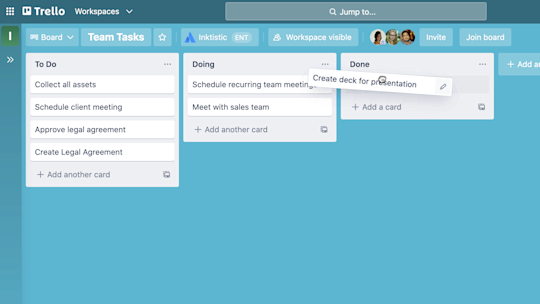
For example, a content team keeps a board with lists for Ideas, Writing, Editing, Scheduled and Published. A writer picks up a card, adds the draft link, and drags it to Editing; an automation rule adds the editor and a review checklist; when the post goes live, the card moves to Published and the due date is marked complete. Everyone can see the state of every piece at a glance, without a status meeting.
Trello Key Features
Boards, Lists and Cards
The board is the heart of Trello and is available on every plan, including Free, with unlimited cards. Cards are dragged between lists, colour labels mark type or priority, and checklists break a card into steps. Board and card templates save repeating the same setup.
This is the purest implementation of a digital Kanban board among mainstream tools, and it is excellent for making work visible. What it does not do natively is enforce Kanban discipline: there are no built-in WIP limits or swimlanes on the base board, so teams that want them rely on conventions or Power-Ups. If you want to practise first, our free Kanban board template follows the same structure.
Card Details and Custom Fields
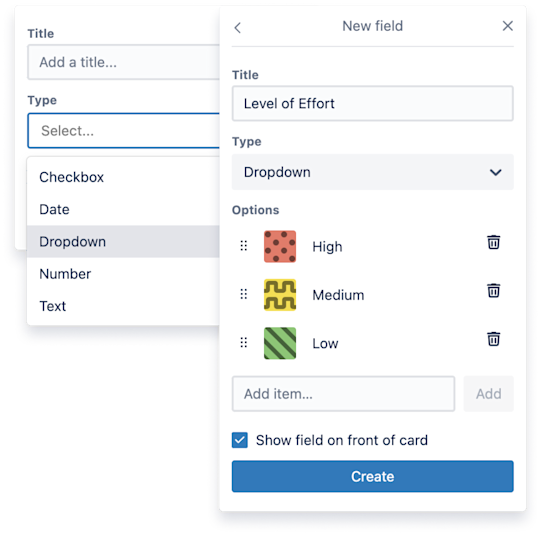
Opening a card shows its full detail: description, members, dates, checklists, attachments, comments and activity. The Standard plan adds custom fields (for data such as priority, client, budget or story points), advanced checklists (assigning and dating individual checklist items), card mirroring (showing one card on several boards) and saved searches.
These additions turn a card into a lightweight record, which is enough for many small teams. They do not add task dependencies between cards, so you cannot say "this card cannot start until that one is finished" and have Trello reschedule the knock-on effects. For work where task dependencies matter, that is the main gap.
Trello Views
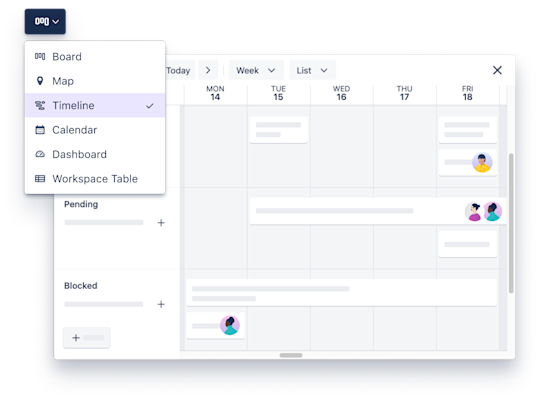
Board view is available to everyone. Trello's other views require Premium or Enterprise:
- Timeline: cards laid out across dates, with drag-to-adjust start and due dates.
- Table: a sortable, filterable spreadsheet-style list of a board's cards.
- Calendar: cards on a calendar by due date, with third-party calendar sync.
- Dashboard: charts of cards per list, per member, per label and by due date.
- Map: location-based cards on an interactive map.
- Workspace views: Table and Calendar views across multiple boards.
Timeline is the closest Trello gets to a Gantt chart, and it is useful for seeing when work lands. It is not a scheduling engine: there are no dependency links, critical path or baselines. Workspace-level Table view is the feature that makes Trello workable for a manager overseeing several boards, so teams that need cross-board visibility should budget for Premium from the start.
Inbox and Planner

Inbox is a personal capture area. Trello says you can send items into it from email and from messaging apps including Slack and Microsoft Teams, then drag them onto the right board later or mark them done in place. Inbox is listed on the Free plan.
Planner syncs with your calendar and lets you block focus time for cards; the pricing page lists it among the Standard plan's features. Together they shift Trello slightly towards personal productivity, which is useful for individuals and team members juggling several boards, though they are not a substitute for team-level planning.
Butler Automation
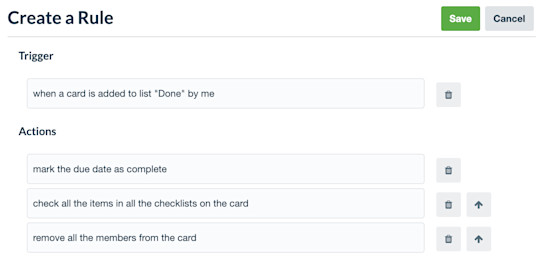
Trello's built-in, no-code automation, long known as Butler, is included on every board. It offers:
- Rules that run actions when a trigger occurs, such as adding a checklist when a card enters a list.
- Card buttons and board buttons that run several actions in one click.
- Calendar commands that run on a daily, weekly, monthly or yearly schedule.
- Due date commands that run as a due date approaches, arrives or passes.
- Email, Slack and Jira actions, such as sending an email or creating a Jira issue from a card.
Trello also suggests automations when it notices repeated actions. Usage is metered in Workspace command runs: 250 per month on Free, 1,000 on Standard and unlimited on Premium and Enterprise. For small teams, Butler removes a surprising amount of manual card shuffling. Busy boards on Free or Standard can hit the monthly limit, so check usage before relying on automation for anything important.
Power-Ups
Power-Ups are add-ons that bring extra features or integrations to a board, and every plan, including Free, allows unlimited Power-Ups per board. Trello's guide says its directory has more than 200. Atlassian-built Power-Ups include Jira, Confluence and Google Drive; others come from third parties and cover time tracking, Gantt charts, voting, card ageing, reporting and more.
This is how Trello stays simple while still letting teams add what they need. It is also a trade-off: capabilities that are built in elsewhere (dependencies, time tracking, advanced reporting) depend on third-party add-ons in Trello, some with their own subscription fees, data access and support. A board with a dozen Power-Ups is no longer a simple tool, so weigh the full cost and admin effort, not just the Trello plan price.
Templates
Trello's public template gallery covers project management, content calendars, sprint boards, onboarding, CRM pipelines and much more, and Premium adds Workspace-level templates so teams can standardise their own. Templates make it quick to start, but they are only a starting point; most teams adapt the lists and labels within a week of use. Our content calendar template and work request template translate directly into Trello boards.
Trello AI Features

Trello's AI features are available on the Standard, Premium and Enterprise plans, on web and desktop, and can be switched on or off by Workspace admins (Enterprise admins manage them from the Enterprise Dashboard). According to Atlassian's documentation, they include:
- Create a board with AI: describe a goal and Trello generates a board with lists and cards.
- Merge cards: drag one card onto another to combine titles, descriptions, attachments, custom fields and labels; the originals are archived and the merge can be undone.
- AI-generated checklists: one click produces a checklist of steps from the card's title and description.
- AI-recommended focus time: with a calendar connected, Trello suggests focus blocks for upcoming cards.
- Due dates from card titles: natural-language dates such as "this Thursday" in a new card's title set the due date (English only).
- AI-generated images for board backgrounds and card covers.
- Rovo writing tools to generate, rewrite and summarise card descriptions and comments.
Atlassian announced most of these on 30 July 2026, along with AI-generated widget cards planned for Trello Labs. Separately, the Trello MCP server, available on every plan, lets external AI assistants read and act on Trello data.

Our assessment: these are practical conveniences that save minutes, especially board creation, checklists and summaries of long comment threads. They are not project intelligence. Trello's AI does not forecast delivery dates, flag resource conflicts or analyse risk across a portfolio, because Trello does not hold that kind of data. Teams that want AI for planning and reporting should look at our guide to AI project management tools.
Trello Collaboration Features
Collaboration happens on the card: comments, @mentions, attachments, checklists, due dates and a full activity log. Members can watch cards, lists or boards to get notified about changes. The Standard plan adds single-board guests, Premium adds Observers (people who can view and comment without full edit rights), and Enterprise adds multi-board guests, who are billed at the same rate as members.
Because the board is so visual, Trello is good at replacing status meetings and update emails for small teams: everyone sees the same picture. The common downside is notification noise. In Capterra's topic summaries, about 41% of reviews discussing notifications describe them as overwhelming or inconsistent. Agree early on who watches what, and use @mentions deliberately. For distributed teams, see our guide to remote project management.
Trello Reporting and Tracking
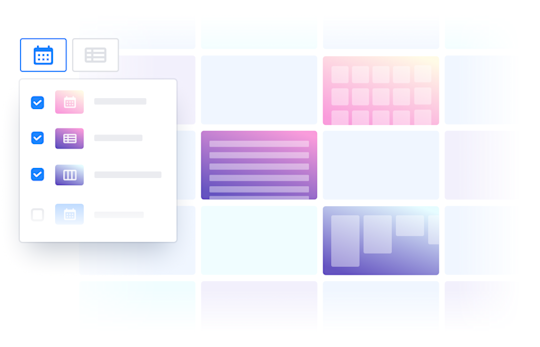
Reporting is one of Trello's thinner areas. On Premium and Enterprise, the Dashboard view charts cards per list, per member, per label and by due date status, and Workspace views show cards from several boards in one table or calendar. Premium also includes simple data export.
That is enough to answer "what is overdue and who is overloaded with cards?" on a handful of boards. It is not enough for portfolio reporting, time and budget tracking, or capacity planning, and Trello has no native resource management. Teams that need those either add reporting Power-Ups or export to a spreadsheet or BI tool, and at that point a fuller project management platform is often simpler. Capterra reviewers make the same point: weaker support for large or complex projects, including reporting and resource management, is a recurring criticism.
Trello Integrations
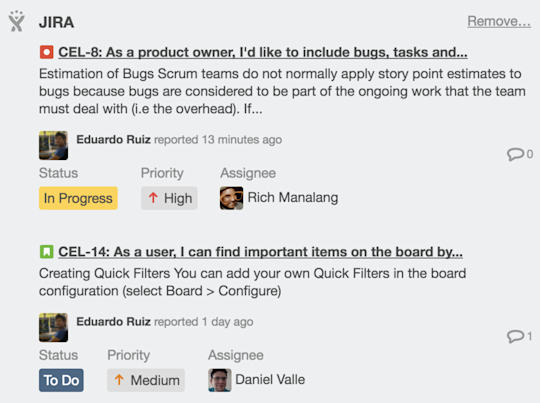
Integrations come through Power-Ups, automation actions and the API. Commonly used connections include:
- Slack and Microsoft Teams, for creating cards and capturing messages
- Jira and Confluence, for linking business boards to engineering issues and documentation
- Google Drive, plus Dropbox, OneDrive and other storage via Power-Ups
- Gmail and Outlook, for turning emails into cards
- Calendars, for Planner and calendar sync
- Automation platforms such as Zapier, and Trello's own REST API and MCP server
The Atlassian connections are a real advantage for organisations that already run Jira: a marketing or support team can work in Trello while engineering stays in Jira, with issues linked on the card. Integration quality varies with third-party Power-Ups, so check who maintains any add-on you plan to depend on.
Trello Ease of Use
Initial Setup
Setup is minimal. Create a Workspace, create a board (or pick a template), add lists, invite people and start adding cards. Most small teams are running within an hour. The design decisions that take more thought are naming lists consistently, agreeing what labels mean, and deciding which Power-Ups and automations are worth adding.
Learning Curve
Trello has one of the shortest learning curves of any project management tool. Capterra users rate its ease of use 4.5/5, and quick onboarding with little training is one of the most consistent positive themes in reviews. Butler automation and some Power-Ups take more effort to learn, but none of it is required to get value from the product.
Interface
The interface is clean, visual and familiar: a board with columns and cards. The weakness shows at scale. Boards with hundreds of cards become long and cluttered, information spreads across many boards, and the lack of hierarchy above the board (beyond Workspaces and Collections on Premium) makes it harder to see how work connects. Capterra reviewers mention cluttered boards as projects grow. Trello is genuinely easy to use; it is less easy to keep organised as the amount of work increases.
Trello Mobile and Desktop Apps
Trello's iOS and Android apps are included on every plan and cover the core experience well: viewing boards, moving cards, commenting, adding checklists and attachments, and receiving notifications. Because Trello's model is so simple, it translates to a phone better than most project management tools. Desktop apps are also available, and AI features work on web and desktop.
Mobile is good for keeping up to date and capturing work on the move. Setting up automation, Power-Ups and Premium views is better done on a larger screen.
Trello Pricing
Trello's published plans are below (checked on Trello's pricing page on 7 October 2026). Prices are per user per month in US dollars.
| Plan | Annual billing | Monthly billing | Best for |
|---|---|---|---|
| Free | $0 | $0 | Individuals and small teams (up to 10 collaborators per Workspace) |
| Standard | $5/user/month | $6/user/month | Small teams that need unlimited boards and more structure |
| Premium | $10/user/month | $12.50/user/month | Teams up to 100 tracking multiple projects with extra views |
| Enterprise | $17.50/user/month ($210/user/year) | Not offered | Organisations of 50+ seats needing central administration |
Workspace members and admins are billable, and multi-board guests are billed at the same rate. Non-profit and education discounts are available. Atlassian Guard, for SSO and user provisioning, is sold separately from $4 per user/month for Standard and Premium, while Enterprise includes Atlassian Guard Standard.
Trello Free Plan
The Free plan costs $0 and includes up to 10 collaborators and 10 boards per Workspace, unlimited cards, Inbox, unlimited Power-Ups per board, assignees and due dates, an unlimited activity log, the mobile apps, two-factor authentication, 250 automation command runs per month and a 10MB limit per file. It is genuinely useful for individuals, personal Kanban and small teams. The 10-collaborator cap is the limit that most often forces an upgrade, followed by the 10-board limit and the lack of custom fields and extra views.
Trello Standard Plan
At $5 per user/month billed annually ($6 monthly), Standard adds unlimited boards, AI features, Planner, advanced checklists, card mirroring, custom fields, collapsible lists, single-board guests, saved searches, 1,000 command runs per month and a 250MB file limit. It suits small teams that have outgrown Free but still work mainly on boards.
Trello Premium Plan
At $10 per user/month billed annually ($12.50 monthly), Premium adds the Timeline, Table, Calendar, Dashboard and Map views, Workspace-level Table and Calendar views, unlimited command runs, admin and security features, Workspace templates, Collections, Observers and simple data export. Trello describes it as best for teams of up to 100 tracking multiple projects. For a team that wants Trello as its main project tool, this is the plan to evaluate.
Trello Enterprise Plan
Enterprise costs $17.50 per user/month, billed annually only. Trello's Enterprise page says it is for businesses with 50 seats or more and mentions a $10k minimum spend. It adds unlimited Workspaces, organisation-wide permissions, organisation-visible boards, public board management, multi-board guests, attachment permissions, Power-Up administration, Atlassian Guard Standard (including SSO and user provisioning) and 24/7 Enterprise Admin support. It is aimed at organisations standardising on Trello across many teams, not at small businesses.
Trello Free Trial
Trello offers a 14-day free trial of Premium, and its trial page says no credit card is required. If no payment details are added, the Workspace returns to the Free plan when the trial ends. Use the trial to run a real workflow with Premium's views and automation, and decide whether you would actually miss them on Standard or Free.
Trello Pros and Cons
Pros
- Very easy to learn and adopt
- Useful free plan with unlimited cards and Power-Ups
- Low price for paid plans
- Clear, visual Kanban boards
- Built-in no-code automation on every plan
- Large Power-Up and integration ecosystem
- Strong links with Jira and Confluence
- Good mobile apps
- Practical AI features from Standard
Cons
- No task dependencies or critical path scheduling
- Free plan capped at 10 collaborators and 10 boards per Workspace
- Timeline, table, calendar and dashboard views need Premium
- No native resource, capacity or portfolio management
- Automation runs are capped on Free and Standard
- Key gaps rely on third-party Power-Ups, which add cost and complexity
- Boards become cluttered as work grows
- Basic reporting; notifications can be noisy
- Granular access controls mostly on higher tiers
This matches what users report: Trello's simplicity, flexibility and visual approach are consistently praised, while its limits for large or complex projects are the most common reason people outgrow it.
What Do Trello Customers Say?
- Ease of use: 4.5/5
- Features: 4.3/5
- Customer service: 4.3/5
- Value for money: 4.5/5
What G2 reviewers like most
- Ease of use
- Robust task management
- Flexibility and organisation
Most common G2 complaints
- Limited features
- No integrated document creation
- Limited budgeting features
Ratings and review themes as published on G2 and Capterra on 5 October 2026; summarised in our own words. Visit the links above for full, verified user reviews.
On Capterra, Trello is rated 4.5/5 from 23,628 reviews, with sub-scores of 4.5 for ease of use, 4.5 for value for money, 4.3 for features and 4.3 for customer service (checked 7 October 2026). On G2, it is rated 4.4/5 from 14,063 reviews (checked 5 October 2026). The themes below summarise these third-party reviews in our own words, not Trello's testimonials.
Positive themes. Reviewers most often praise the intuitive boards, lists and cards, real-time collaboration and centralised communication, flexibility across personal and team use, quick onboarding with little training, and useful automation and integrations. In Capterra's topic summaries, real-time team collaboration (about 97% positive) and flexible visual task management (about 96% positive) stand out.
Negative themes. The most common complaints are notifications that are excessive, delayed or hard to customise, basic or unclear access controls (about 41% of reviews on that topic are negative), weaker support for large or complex projects, boards becoming cluttered as projects grow, advanced features needing Power-Ups or higher plans, and occasional slow support responses.
Capterra labels each review as incentivised or non-incentivised, and G2 does something similar. Filtering for non-incentivised reviews, and reading critical reviews from teams of your size, gives a more realistic picture than the headline score.
Trello Customer Support
Trello support is provided through Atlassian: a help centre with documentation, the Trello guide, webinars and the Atlassian Community forum, with direct support options that vary by plan. Enterprise includes 24/7 Enterprise Admin support.
Third-party feedback is reasonably positive, with a Capterra customer service sub-score of 4.3/5, though some reviewers report slow responses. Because Trello is so widely used, community answers and tutorials are easy to find, which matters more for most small teams than formal support.
Trello Security
All plans include two-factor authentication and board-level permissions (private, Workspace-visible or public boards). Premium adds admin and security features, and Enterprise adds organisation-wide permissions, control over who can create public boards, attachment permissions, Power-Up administration (approving which Power-Ups staff can use) and SAML single sign-on and user provisioning through Atlassian Guard.
Trello's Enterprise guide lists SOC 2 and SOC 3 reports, ISO/IEC 27001 and 27018, and GDPR compliance among its security credentials, and points to the Atlassian Trust Center for current reports. Confirm current certifications and their scope there as part of procurement. Note that Capterra reviewers who discuss access controls are often critical of how granular they are, so test permissions against your own requirements, particularly if you work with clients or external guests.
Trello for Different Types of Teams
Trello for Small Businesses
Small businesses are Trello's natural market: cheap, quick to adopt and flexible enough for sales pipelines, client work and operations. The Free plan's 10-collaborator cap means a growing business will soon pay for Standard or Premium, but even then costs stay low.
Trello for Marketing and Content Teams
Editorial calendars, campaign checklists and creative request boards fit Trello well, and Calendar view (Premium) makes publishing schedules easy to see. Teams that need formal approvals, proofing or campaign budgets will find it limited.
Trello for Software and Agile Teams
Small product and development teams can run a simple Scrum board or Kanban flow in Trello, and some use Power-Ups for story points. Once a team needs backlogs, sprint reports, velocity or release tracking, Jira, from the same company, is the more natural fit.
Trello for Personal Productivity
Inbox, Planner and the Free plan make Trello a strong personal task manager, particularly for people who think visually. Our to-do list template offers a paper-based alternative.
Trello for Larger Organisations
Enterprise gives large organisations central administration, SSO and Power-Up control, and many companies use Trello for team-level boards. As the main project management system for a department running many interdependent projects, it is usually too light: there is no portfolio management, dependency scheduling or resource planning.
Who Should Use Trello?
Great for
- Individuals and small teams
- Simple workflows such as content calendars or recruiting pipelines
Look elsewhere if
- Teams managing complex schedules, budgets or many projects
Trello Feature Checklist
| Feature | Trello |
|---|---|
| Free plan | ✓ Yes |
| Gantt / timeline | ◐ Partial |
| Kanban boards | ✓ Yes |
| Time tracking | ◐ Partial |
| Resource & workload management | ✕ No |
| Portfolio management | ✕ No |
| Docs & wiki | ✕ No |
| Automations | ✓ Yes |
| Agile / sprint tools | ◐ Partial |
| Proofing & approvals | ✕ No |
| Built-in AI | ✓ Yes |
| Guest / client access | ✓ Yes |
| Flat (non per-user) pricing | ✕ No |
Trello Alternatives and Comparisons
Trello fits teams of almost any size and is one of the easiest project management tools for beginners: you can create a board, add cards and start working in minutes, then add Power-Ups, automation and extra views as your projects grow. If you would like to see how it stacks up, we compare Trello with Asana, monday.com, ClickUp, Wrike and others on pricing, features and use cases on dedicated pages:
- Asana: choose it for more structured project management. Compare Trello vs Asana.
- monday.com: choose it for more views and automation. Compare Trello vs monday.com.
- ClickUp: choose it for far more features at low cost. Compare Trello vs ClickUp.
- Wrike: choose it for full project and resource management. Compare Trello vs Wrike.
- Notion: choose it for docs plus boards. Compare Trello vs Notion.
Trello comparisons
Is Trello Worth It?
Trello is likely worth it if you:
- Want a visual board that everyone understands immediately.
- Are an individual or a small team with fairly simple workflows.
- Need a capable free plan or a low per-user price.
- Run pipelines, content calendars or Kanban-style flows rather than date-driven project plans.
- Already use Jira or Confluence and want a lighter tool for business teams.
- Prefer adding features through Power-Ups to adopting a heavy platform.
It may not be worth it if:
- Your projects depend on task dependencies, critical paths or detailed project timelines.
- You need resource, capacity, time or budget management.
- Managers need portfolio reporting across many projects.
- You would need many paid Power-Ups to fill the gaps.
- Your Workspace has more than 10 people and you were counting on the free plan.
Our verdict: Trello's simplicity is both its biggest advantage and its main limit. For individuals and small teams, it is one of the quickest, most affordable ways to make work visible, which is why it remains popular. For complex, multi-project work, it ranks ninth in our project management software review because the depth is not there. Use the 14-day Premium trial on a real workflow before deciding which plan, if any, you need.
Frequently asked questions
Is Trello good project management software?
Yes, for simple and moderately complex work. Trello is very easy to learn, affordable and rated 4.5/5 on Capterra. It lacks native task dependencies, resource management and portfolio reporting, so it suits individuals and small teams with board-shaped workflows more than organisations running many interdependent projects.
Is Trello free?
Yes. Trello's Free plan costs $0 and includes unlimited cards, Inbox, unlimited Power-Ups per board, mobile apps and 250 automation runs a month. It is limited to 10 collaborators and 10 boards per Workspace, and extra views, custom fields and AI require a paid plan.
How much does Trello cost?
Trello costs $0 on Free, $5 per user/month on Standard ($6 billed monthly), $10 per user/month on Premium ($12.50 billed monthly) and $17.50 per user/month on Enterprise, billed annually only. Enterprise is aimed at 50 seats or more (checked 7 October 2026).
Does Trello have a free trial?
Yes. Trello offers a 14-day free trial of Premium, and its trial page says no credit card is required. If you do not add payment details, the Workspace returns to the Free plan when the trial ends.
Is Trello easy to use?
Yes. Trello is one of the easiest project management tools to learn, and Capterra users rate its ease of use 4.5/5. Boards, lists and cards are intuitive. Automation and Power-Ups take a little more effort, and very large boards can become cluttered.
What is Trello best used for?
Trello is best for Kanban-style task tracking, small team projects, content calendars, recruiting and sales pipelines, personal to-do lists, request intake and simple sprint boards: work that moves through stages on a board.
Is Trello better than Asana?
Neither is universally better. Trello is simpler and cheaper for board-based work; Asana adds more structure, dependencies, goals and portfolio features. See our Trello vs Asana comparison.
Is Trello better than monday.com?
It depends on your needs. Trello is simpler and less expensive; monday.com offers more views, automation and reporting for teams that need a more customisable platform. See our Trello vs monday.com comparison.
Does Trello have Gantt charts?
Not natively. Premium and Enterprise include a Timeline view that shows cards across dates, but it has no dependency links, critical path or baselines. Some teams add third-party Gantt Power-Ups for that.
What are Trello Power-Ups?
Power-Ups are add-ons that bring extra features and integrations to a Trello board, such as Jira, Confluence, Google Drive, time tracking or voting. Every plan, including Free, allows unlimited Power-Ups per board, though some third-party Power-Ups charge separately.
What is Trello Butler?
Butler is the name long used for Trello's built-in, no-code automation. It covers rules, card and board buttons, scheduled commands and due date commands. Free includes 250 command runs a month, Standard 1,000 and Premium and Enterprise unlimited.
Does Trello have AI?
Yes. On Standard, Premium and Enterprise, Trello AI can create boards from a description, merge cards, generate checklists, recommend focus time, set due dates from card titles, generate images and help write or summarise content. The Trello MCP server is available on every plan.
Who owns Trello?
Trello is owned by Atlassian, the company behind Jira and Confluence. Atlassian announced the acquisition in January 2017. Trello was originally created by Fog Creek Software and launched in 2011.
What are the main disadvantages of Trello?
The main disadvantages are the lack of task dependencies, resource management and portfolio reporting, the 10-collaborator cap on the Free plan, advanced views needing Premium, reliance on Power-Ups for missing features, cluttered boards at scale and noisy notifications.
Is Trello suitable for small businesses?
Yes. Trello is a strong fit for small businesses that want a simple, low-cost way to organise work. Once a business has more than 10 people in a Workspace or needs extra views, it will need Standard or Premium, which are still inexpensive.
Product screenshots are © Atlassian Corporation and shown for the purpose of review, with links to their source pages.